
 Models
 Materials
 HDRIs
HDRIs
 Scenes
 Brushes
 Node Groups
 Printables
 Creators
 Creations
N-Panel Tabs
 add-on
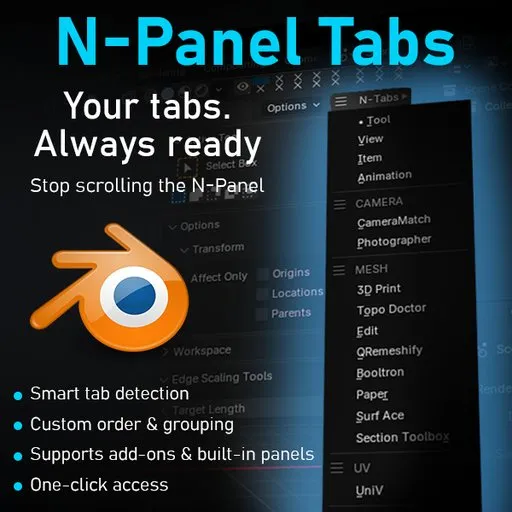
Switch N-Panel tabs with a single dropdown in the 3D View header. Customize tab order, rename labels, and access your full tab list even in narrow viewports. Perfect for workflows with multiple tabs.
Take Back Control of Your N-Panel
If you use Blender daily, you already know the problem.
The more add-ons you install, the more your N-panel turns into a crowded, inefficient mess.
Tabs keep stacking up, categories become harder to navigate, and every small action turns into a search task.
It’s not a big issue once.
It becomes a constant slowdown over time.
N-Panel Tabs solves exactly this.
First use
After installation, a new dropdown named “N‑Tabs” will appear in the top‑right corner of the 3D Viewport.
At first, the dropdown is empty: no tabs have been loaded into the list yet.
To populate the list with all the N‑Panel tabs present in your Blender installation, go to N‑Tabs → Preferences.
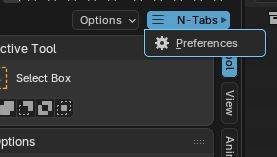
This opens the addon preferences window, where you can manage the tab list in full.
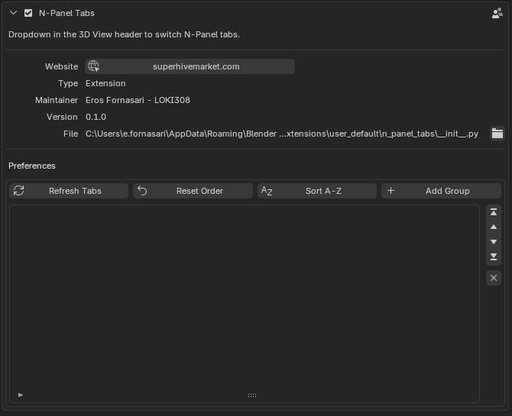
Click the “Refresh Tabs” button.
The addon will scan all N‑Plan tabs in your Blender installation and add them to its internal list.
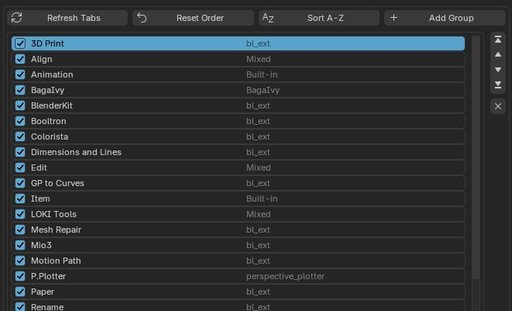
After the refresh, the N‑Tabs dropdown will be populated and ready to use: you can now navigate between tabs by selecting them from the menu, without having to scroll manually through the N‑panel.
Managing new addons / tabs
When you install new addons or extensions in Blender that create new tabs in the N‑Panel, these tabs do not appear automatically in the N‑Tabs dropdown.
To make them visible:
* Go to N‑Tabs → Preferences.
* Click “Refresh Tabs” again.
The addon will rescan the N‑Panel and:
* Add any new tabs to the end of the list, without deleting or altering your previous settings.
* Remove tabs associated with addons that have been disabled or uninstalled, keeping the list always up to date and consistent with your current Blender configuration.
This mechanism is non‑destructive: your customizations (names, positions, visibility) remain intact; only the list of available tabs is synchronized.
Customizing the tab list
With N‑Panel Tabs you can fully customize the tab list to match your personal workflow. The structure is simple but powerful.
1. Show / hide tabs
Each tab is represented by a row with a checkbox next to its name.
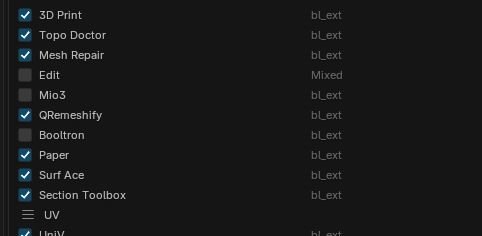
When the checkbox is enabled, the tab is visible in the N‑Tabs dropdown.
When disabled, the tab is hidden from the menu but still remains fully functional in Blender (it will simply not appear in the N‑Tabs list).
2. Renaming tabs
When you select a tab in the list, a details table appears below it, showing its properties.
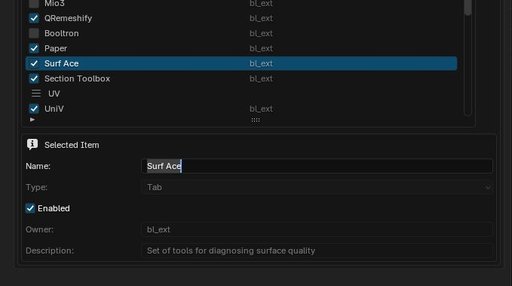
In the “Name” row you can edit the text displayed in the dropdown.
This is useful to:
* Use shorter or clearer names.
* Distinguish similar tabs with custom labels.
* Adapt the list to your own language (e.g., “Animation Tools”, “Pro Materials”, etc.).
3. Reordering tabs
To the right of the tab list you’ll find a set of buttons to control the position of each item:
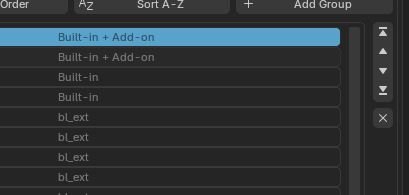
Up / Down: Move the selected tab one position up or down in the list.
Top / Bottom: Move the selected tab to the first or last position in the list.
This is especially useful when you want to:
* Group the most frequently used tabs at the top.
* Keep rarely used tabs at the bottom of the list.
4. Automatic A‑Z sorting
The “Sort A‑Z” button will reorder all tabs (and any groups) in alphabetical order.
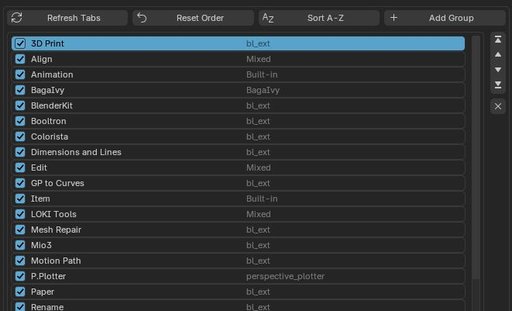
This is handy when the list becomes long and messy, or when you want a clean starting point before organizing it manually.
Creating groups (separators)
To make the list even more readable and organized, N‑Panel Tabs allows you to insert groups that act as visual separators:
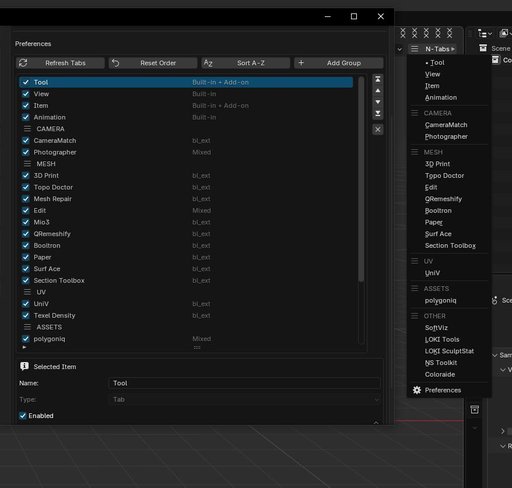
Use the “Add Group” button to create a new group in the list.
Each group appears as a separate row and can be renamed (e.g., “Modeling Tools”, “Camera Management”, “Misc Add‑Ons”).
Groups are not real tabs, but they help:
* Visually divide the list into logical sections.
* Guide your eye more easily toward the area of interest.
* Create a faster workflow: instead of “scrolling and searching”, you scroll and recognize the section at a glance.
Once configured, N‑Tabs becomes your quick link to the N‑panel: you can access every tab with a single click, without having to scroll or search through the side panel.


