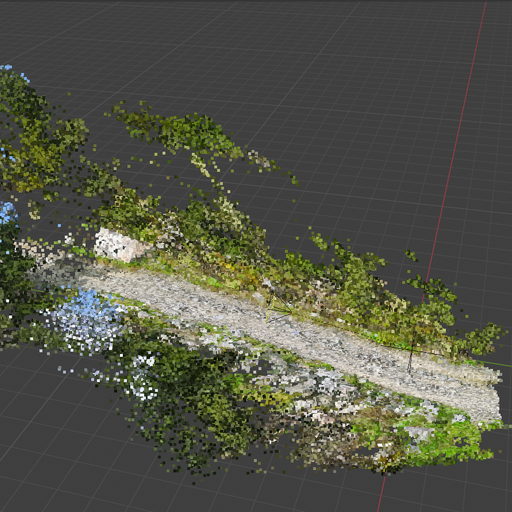
Open Video Tracker
A photogrammetry based video tracker
Introduction
Open Video Tracker is a Blender add‑on that automates converting video footage into 3D point clouds and camera tracks using photogrammetry techniques. It integrates FFmpeg, COLMAP, and GLOMAP to provide a streamlined workflow for video tracking and 3D reconstruction.
Note: The add‑on is currently available for Windows only. Use the CUDA build if you have an NVIDIA RTX GPU; otherwise, use the standard version.
What's New in v0.2:
- 🎨 Improved Import Menu UI - Enhanced interface with better organization and visual feedback
- 🔄 Reimport Data Option - Easily reimport previously processed data without reprocessing
- 📐 Z-Axis Data Postprocessing - Automatic correction for Z-axis alignment issues
- ⚙️ GPU Settings in Preferences - Separated GPU controls for more fine-tuned control
Video Demo See the end-to-end workflow in action.
Installation
Step 1 — Download the add‑on
- Download the Open Video Tracker add‑on.
f you have an NVIDIA RTX GPU, download the given file on this website
Otherwise, download the standard build from here Download LINK
Step 2 — Install in Blender
- Open Blender
- Go to Edit → Preferences
- Select the Add-ons tab
- Click Install from Disk
- Navigate to and select the open_video_tracker folder
- Click Install From Disk
Step 3 — Verify installation
- Switch to the 3D Viewport
- Open the right sidebar and look for the Open Video Tracker tab
- If it’s visible, the installation was successful
User Interface Overview OVT-Main
Main Panel
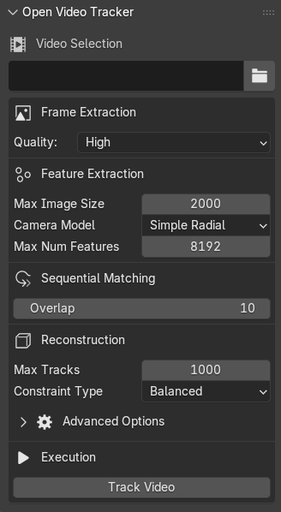
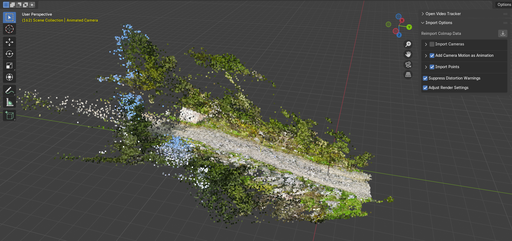
The main interface is located in the 3D Viewport sidebar under the “Open Video Tracker” tab.
For detailed docs please refer to: link
Video Selection
- Video Path: File browser to select input video file
- Video Information: Displays frame rate, resolution, and bitrate
Frame Extraction Settings
- Quality: Native, High, Balanced, Low, Lowest
Feature Extraction Settings
- Max Image Size (default: 2000 px)
- Camera Model: Simple Radial recommended
- Max Num Features (default: 8192)
v0.2 Update: GPU settings have been moved to Preferences for more fine-grained control. See Configuration section for details.
Sequential Matching
Overlap: Number of overlapping frames (default: 10)Reconstruction Settings
- Max Tracks per image (default: 1000)
- Constraint Type: Balance between point and camera constraints
- Advanced Options: GLOMAP parameters (epipolar error, iterations)
Execution Controls
- Track Video: Start the processing pipeline
- Progress: Real-time progress indicator
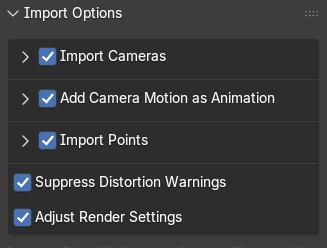
Import Options Panel
v0.2 Enhancement: The import menu has been redesigned with improved organization and visual feedback.
1. Camera Import
- Import Cameras: Enable camera track import
- Camera Extent: Size of camera visualization
- Add Background Images
- Add Image Planes
- Animation Options
2. Point Import
- Import Points
- Point Cloud Display: Sparsity and rendering options
- GPU Rendering
- Mesh Options
3. Advanced Options (v0.2)
- 🔄 Reimport Data: New in v0.2 - Import previously processed data without reprocessing
- 📐 Z-Axis Postprocessing: New in v0.2 - Automatic correction for Z-axis alignment issues
Configuration Options
GPU Settings
(Moved to Preferences in v0.2)
- Enable GPU Acceleration: Use CUDA for NVIDIA RTX GPUs
- GPU Memory Limit: Set maximum GPU memory usage
- Compute Device: Select specific GPU device (multi-GPU systems)
- Force CPU Fallback: Override GPU settings for troubleshooting
GPU settings are now accessible via Edit → Preferences → Add-ons → Open Video Tracker → GPU Configuration
Camera Models
- Simple Radial: Most consumer cameras (smartphones, DSLRs)
- Simple Radial Fisheye: Action cameras (GoPro)
- OpenCV: Computer vision cameras
- Full OpenCV: Complex distortion scenarios
Constraint Types
- Points Only: When camera positions are unreliable
- Cameras Only: When point features are sparse
- Balanced: Recommended default
- Points and Cameras: Maximum constraints, slower
Post-Processing Options
(New in v0.2)
- Z-Axis Auto-Correction: Automatically fix Z-axis alignment issues
- Scale Normalization: Normalize point cloud scale
- Outlier Removal: Remove statistical outliers from point clouds
- Smoothing: Apply mesh smoothing for better surface quality
Credits
- Blender — 3D creation suite (blender.org)
- FFmpeg — Video processing toolkit (ffmpeg.org)
- COLMAP — Structure-from-Motion and MVS (colmap.github.io)
- GLOMAP — Global incremental SfM (github.com/colmap/glomap)
- Blender Photogrammetry Importer (github.com/SBCV/Blender-Addon-Photogrammetry-Importer)
- Thanks to the open‑source community and contributors
Logos and trademarks are the property of their respective owners.