
 Models
 Materials
 HDRIs
HDRIs
 Scenes
 Brushes
 Node Groups
 Printables
 Creators
 Creations
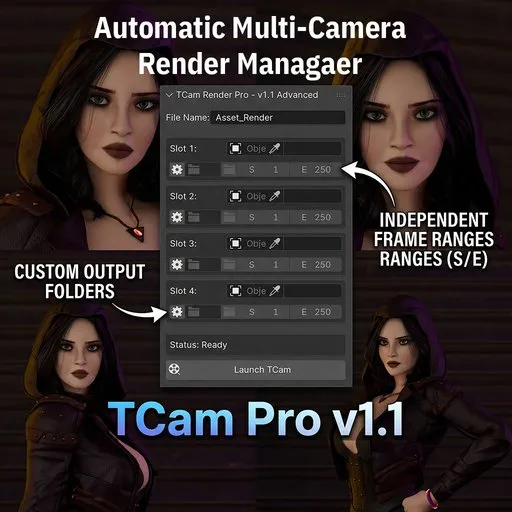
TCam Render Pro V1.1
 add-on
Queue cameras, set custom frame ranges, and auto-generate folders. TCam automates renders with smart hardware cooling and safe exports. The ultimate 'set and forget' non-destructive production assistant.
TCam Render Pro v1.1
TCam Render Pro is a professional workflow tool that automates your multi-camera rendering processes in Blender. It automatically queues your selected cameras, applies custom frame ranges, and dynamically organizes the output into auto-generated folders. It eliminates the tedious task of manually switching between cameras, setting timelines, and naming files, ensuring your computer runs uninterrupted (especially during long or overnight processes). Designed for 3D artists who want to maximize rendering efficiency in architectural visualization, product display, and multi-angle projects.
⚙️ Key Technical Specifications
Slot Assignment: Assign up to 4 cameras to independent slots. The system processes the queue sequentially, automatically skipping empty slots.
Custom Paths & Frames (NEW): Enable the 'Custom' toggle to define specific Frame Start and Frame End values, and select a unique target directory for each specific camera.
Auto-Folder Generation (NEW): When a custom directory is selected, TCam automatically creates a dedicated sub-folder named after the active camera, keeping your output strictly organized.
Flexible Naming Engine: Name your production files to keep them organized. TCam uses the format ProjectName_CameraName_Frame.ext. If left blank, it defaults to the Outliner camera name.
Non-Destructive Workflow (NEW): TCam safely restores your original global frame ranges and output paths once the render queue is complete or cancelled.
Dynamic Intelligent Cooling: Applies hardware-safe pause intervals between renders to ensure file integrity and prevent system overheating.
Automatic Memory Optimization: Cleans unused data blocks (orphans purge) before each render cycle to keep the scene light and reduce the risk of crashes.
❄️ Smart Cooling Intervals
To protect your hardware and ensure stable file writing, TCam applies the following cooling times depending on your output format:
Video Formats (FFmpeg, AVI, etc.): 10-second pause.
Image Formats (PNG, JPG, EXR, etc.): 5-second pause.
🛠 Workflow
Global Output: Set your default target folder and file format in Blender's standard Output properties.
Project ID: Open the TCam panel in the Sidebar (N-Panel) and enter your Project Name.
Slot Setup: Select your cameras. Optionally, check the 'Custom' box to assign unique frame ranges and folders to specific shots.
Start: Click Launch TCam. The plugin will process the queue dynamically until "All Done!" is displayed.
🛑 Operation and Security
Cancel: You can safely abort a render by pressing the Esc key during the render process. TCam will clear the internal queue and safely restore your original scene settings.


