
 Add-ons
 Models
 Materials
 HDRIs
HDRIs
 Scenes
 Brushes
 Node Groups
 Printables
 Creators
 Creations
✨ Features
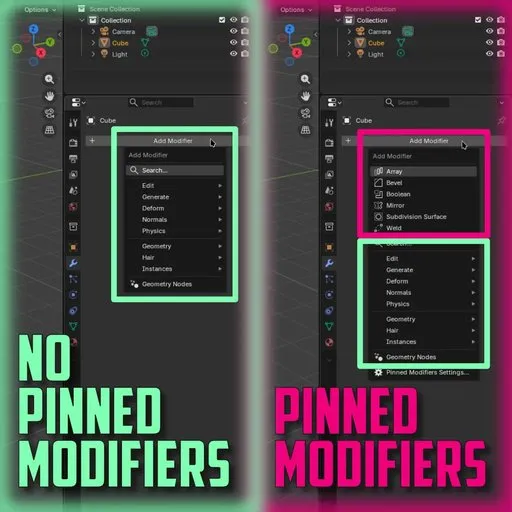
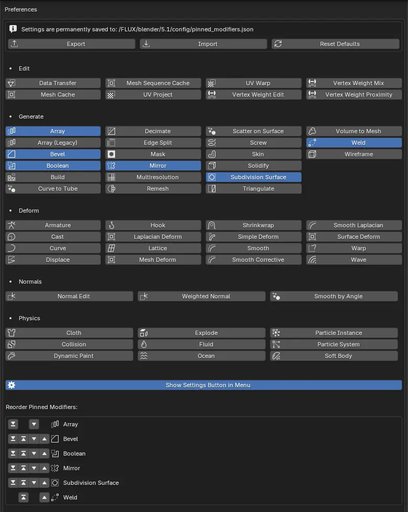
- Pin Any Modifier: Toggle which modifiers you want to appear in your quick-access list.
- Custom Reordering: Use the [ ⤒ | ↑ | ↓ | ⤓ ] UI controls to arrange your pinned modifiers in the order you want.
- Persistent Settings: Your configuration is written to a JSON file. Settings permanently survive Blender restarts, add-on reloads, and updates.
- Export / Import: Easily back up your personalized modifier stack or share your layout across multiple workstations and operating systems.
- Reset to Defaults: Messed up your list? Restore the default configuration with a single click. Just remember to export your settings, in case you want to restore them later!
- Cross-Platform: Works flawlessly on Linux, Windows, and macOS.
- Download the latest pinned-modifiers.zip file from the Releases page, and drop it into Blender.
- go to Edit > Preferences > Add-ons
- Click Install... in the top right corner and select the downloaded file.
- Enable the checkbox next to Interface: Pinned Modifiers.
- Navigate to Edit > Preferences > Add-ons and expand the Pinned Modifiers add-on menu.
- check the boxes for your favorite modifiers, and reorder them at your liking from the section at the bottom.
- The Reorder Pinned Modifiers section will populate with the chosen modifiers. Use the arrows to set your preferred vertical order.
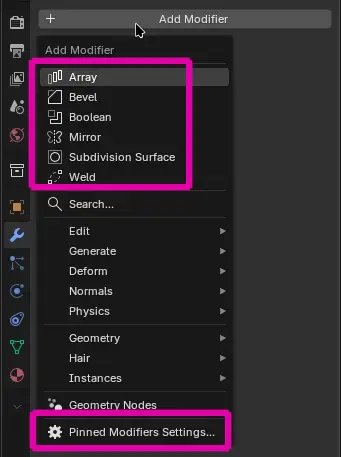
- Close the preferences. Open the Modifiers Tab and click Add Modifier. Your pinned modifiers will be sitting right at the top!
Your preferences are saved locally to a lightweight .json file inside your user configuration folder. The exact path for your specific operating system is displayed at the top of the add-on preferences panel.
🐛 Bug Reports & Feature RequestsFound a bug or have an idea to make this add-on better? Please open an issue on the GitHub Issues page.


