Specific Frame Render Manager
Specific Frame Render Manager is a professional Blender tool that makes rendering faster and more organized. It lets you render only the frames you need using custom lists or ranges, work with multiple cameras, skip already rendered frames, and keep
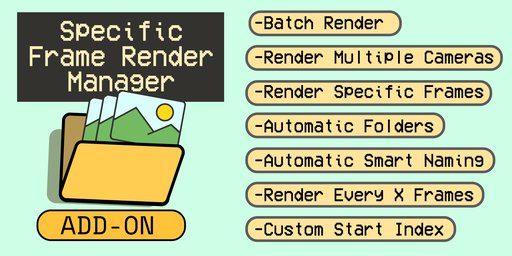
Specific Frame Render Manager is a professional Blender tool designed to make your rendering process faster and more organized. It allows you to choose exactly which frames to render by using custom lists, specific ranges, or individual frames Example: (1-5, 8, 10, 13-15). You can also render from multiple cameras at once and automatically skip frames that are already finished. With its smart versioning folder system and custom name manager, your files stay perfectly sorted. Features like auto-naming and the "Start Index" tool give you total control over your sequence. Just type your frame numbers, set your naming style, and let the tool handle the heavy lifting for a stress-free workflow.
Compatibility: Works with Blender 4 and Blender 5.
Features:
Output & Path Management
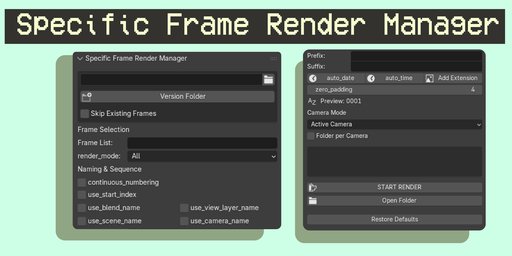
-Custom Output Path: Allows you to define a specific directory for renders. It is a mandatory field to ensure files are saved where intended.
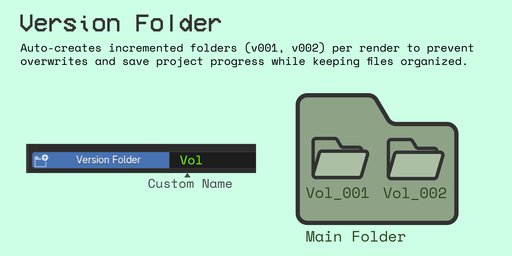
-Version Folder: Automatically creates a new subfolder each time you start a render to prevent overwriting previous takes. You can customize the name of this folder (default is "v") and it will auto-increment (example: v_001, v_002).
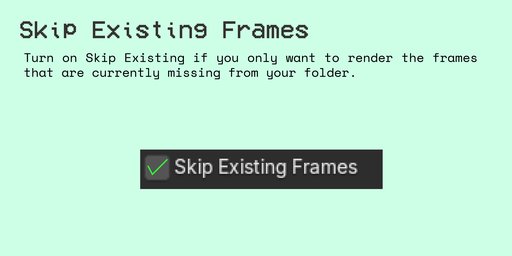
-Skip Existing Frames: Checks the destination folder and only renders frames that do not exist yet. Useful for resuming interrupted renders.
-Open Folder: A quick-access button to open the current output directory in your OS file explorer.
Frame Selection
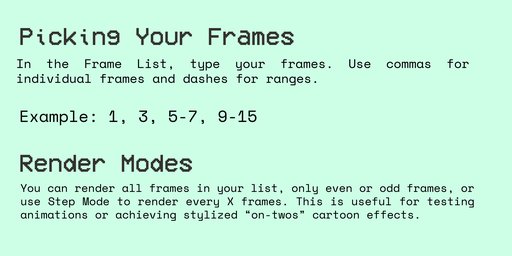
-Frame List: A mandatory input field where you define specific frames or ranges (example: 1, 5, 10-20, 50).
-Render Mode:
All: Renders every frame specified in the list.
Even: Filters the list to render only even-numbered frames.
Odd: Filters the list to render only odd-numbered frames.
Step: Set a frame step to render every X frames. This is perfect for testing animations quickly or achieving stylized "on-twos" cartoon effects.
Naming & Sequence
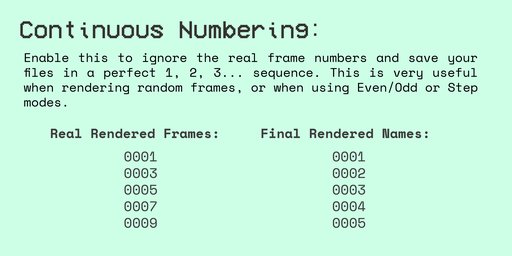
-Continuous Numbering: Ignores the actual frame number and renames files in a sequential 1, 2, 3... order.
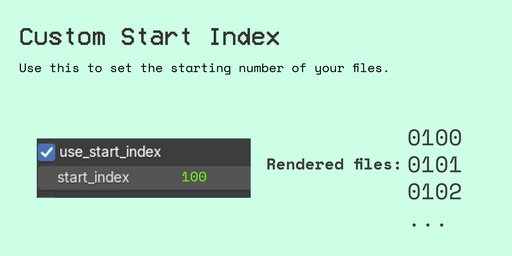
-Start Index: Defines the starting number for the sequence if Continuous Numbering is active.
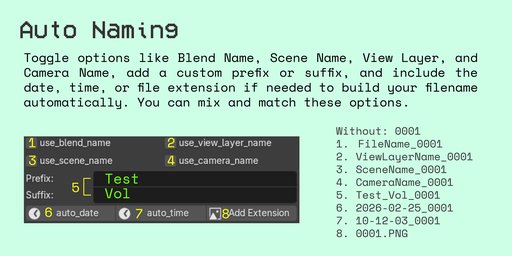
-Naming Toggles: Dynamically build filenames by including:
-Blend Name: The name of the .blend file.
-Scene Name: The current Blender scene name.
-View Layer Name: The active view layer.
-Camera Name: The name of the camera used for the render.
-Custom Prefix/Suffix: Adds manual text strings to the beginning or end of the filename.
-Auto Date/Time: Appends the current system date and time to the filename for unique identification.
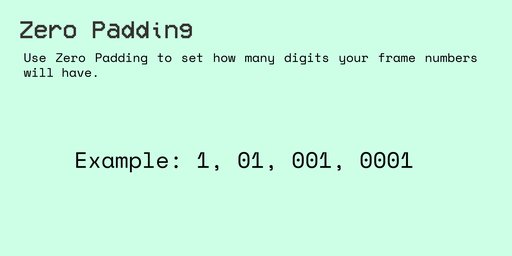
-Zero Padding: Sets the number of digits for the frame number (example: 1, 01, 001, 0001).
-Preview: Displays a real-time example of what the final filename will look like.
Camera Controls
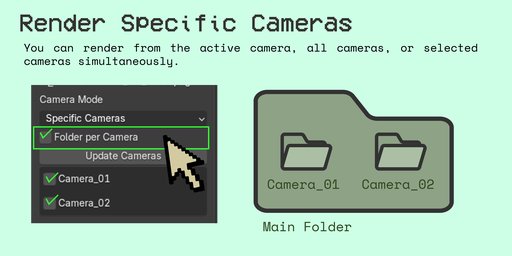
-Camera Mode:
Active Camera: Renders only from the scene's current active camera.
All Cameras: Batch renders the frame list through every camera object in the scene.
Specific Cameras: Opens a list where you can manually check which cameras to include in the render.
-Folder per Camera: Creates individual subfolders for each camera to keep renders organized.
Safety & Monitoring
-Safety Checks: The UI blocks rendering and shows an alert if:
The file is not saved.
The Output Path is empty.
The Frame List is empty.
There is a filename conflict when using multiple cameras.
-Progress UI: Displays a real-time percentage bar, the current frame count, the time taken for the last frame, and the Remaining Time.
-Summary Box: After rendering, it provides a report showing total rendered frames, skipped frames, and the total duration.
Included:
Add-on (.zip) ready to install
Instructions:
https://www.behance.net/gallery/245461661/Specific-Frame-Render-Manager