Batch BG Cams
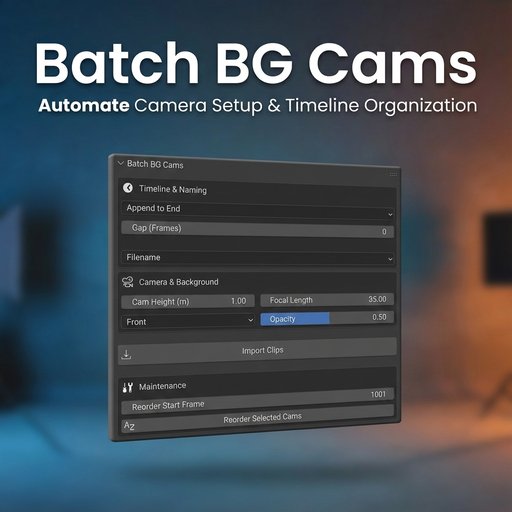
Automate multi-camera setups: Batch import clips, auto-configure background images, sequence timeline, and bind markers in seconds. Includes smart reordering tools and token-based naming for professional layouts.
Batch BG Cams for Blender
Batch BG Cams is a workflow accelerator for Layout Artists, Matchmovers, and Animators. It automates the tedious process of setting up multiple cameras based on video clips (plates) and organizing them on the timeline.
Features
🚀 Batch Import
- Smart Placement: Choose how new clips are added to the timeline:
- Append to End: Automatically finds the end of your current sequence and places new clips strictly after the last one.
- At Cursor: Starts the sequence exactly where your playhead is.
- Manual: Starts strictly at a defined frame number.
- Auto Setup: Creates a camera for each clip, sets the correct resolution, and sets up the background image reference (Opacity, Depth).
- Gap Control: Add empty frames (handles) between clips automatically.
- Token Pattern: Use # placeholders to auto-number your cameras.
- Example: Seq01_Shot_### becomes Seq01_Shot_001, Seq01_Shot_002, etc.
- Search & Replace: Clean up filenames on import (e.g., remove _plate suffixes).
- Keep Filename: Use the exact name of the video file.
- Reorder Selected: Selected cameras in the wrong order? One click sorts them alphabetically by name and re-stacks them on the timeline cleanly (including markers and background offsets).
- Marker Binding: Automatically creates timeline markers and binds the cameras to them for seamless camera switching during playback.
How to Use
Import
- In the 3D Viewport, press N to open the Sidebar.
- Click the Batch BG tab.
- Choose your Placement Mode (Append is recommended).
- Set your Naming Mode (e.g., use Pattern Shot_##).
- Click Import Clips and select your video files.
- Select the cameras you want to fix in the 3D View or Outliner.
- Go to the Maintenance box at the bottom of the panel.
- Set the Reorder Start Frame.
- Click Reorder Selected Cams.
Tested with Blender 4.x and 5.x (Alpha).
Installation
- Download the batch_bg_cams.zip file.
- Open Blender (4.0 or later).
- Go to Edit > Preferences > Add-ons.
- Click Install... (or drop the zip file if using Blender 4.2+).
- Select the zip file and click Install Add-on.
- Enable the checkbox for Batch BG Cams.
$8
$8
Name
Batch BG Cams
Archive version
2.3.1
Platforms
windows-x64, macos-arm64, linux-x64, macos-x64, windows-arm64
File size
946.5 KiB