Dimensions and Lines
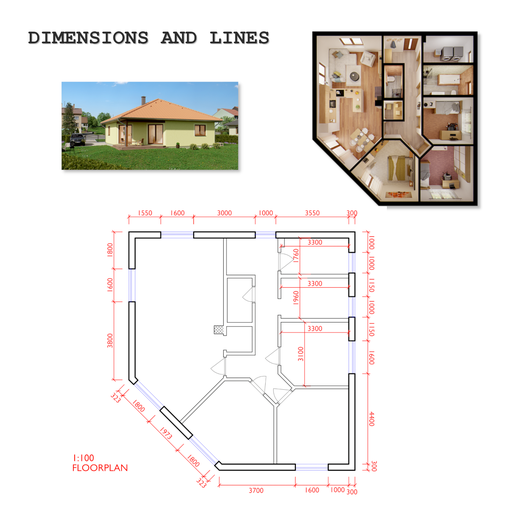
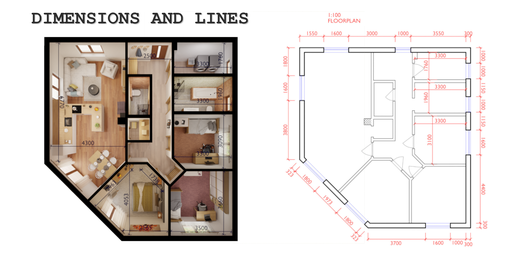
Dimensions and Lines is a Blender addon designed for creating technical drawings, length and angular dimensions, and blueprint-style layouts directly in the 3D viewport.
CAD-style dimensions and technical drawings for Blender
Dimensions and Lines is a Blender add-on for creating technical drawings, dimensions, and blueprint-style layouts directly in the 3D viewport. It brings CAD-like dimensioning workflows into Blender while keeping everything fully renderable and part of your scene as real geometry.
Current version: 2.0.0
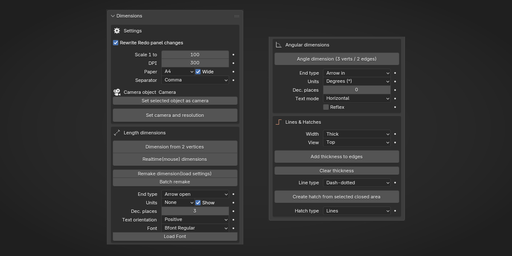
Panel locationOpen the 3D View sidebar (N) and choose the DimLin tab. The layout follows the panel from top to bottom.
The tab is organized into four blocks:
- Settings — redo override, scale, paper, DPI, decimal Separator, camera pick, Set camera and resolution
- Length dimensions — linear dimensions, units, font, end type, Remake, Batch remake
- Angular dimensions — angle dimensions from three vertices or two edges, angle-specific presets
- Lines & Hatches — line width, View (drawing plane), line tools, hatch tools
Settings
- Rewrite Redo panel changes — when on, the sidebar overrides values instead of the last operator redo where applicable.
- Scale (1: drawing scale), DPI, Paper, Wide
- Separator — decimal separator (Comma or Dot) for length and angle dimension text
- Camera object and Set selected object as camera
- Set camera and resolution — pick a camera with Set selected object as camera, set Paper, Wide, DPI, and Scale, then run this operator. It configures that camera for orthographic rendering, sets render resolution from the sheet and DPI, and fits ortho_scale to the paper and scale. Paper presets include ISO and US formats such as A5–A0, Letter, Legal, Ledger, ARCH A–E, and ANSI A–E.
Length dimensions
Operators
- Dimension from 2 vertices — select one mesh, enter Edit Mode, select exactly two vertices, run the operator. A length dimension (mesh + child text) is created; use the operator redo panel for offsets, text size, line weight, and other parameters.
- Realtime (mouse) dimensions — interactive pick of points and offset in the viewport (see Realtime shortcuts).
- Remake dimension (load settings) — rebuild a single selected length dimension from its mesh and text.
- Batch remake — Object Mode: active object must be a valid length dimension; multi-select other length dimensions that share the same type and compatible geometry parameters. A dialog opens; confirm to rebuild all matching targets at once (see MANUAL.md).
Presets (in the Length dimensions section, under the operators): End type, Units, Show, Dec. places, Text orientation, Font, Load Font.
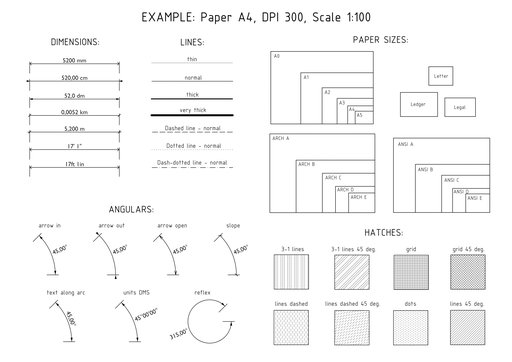
End type — one of: Slope, Slope no overlap, Arrow in, Arrow out, Arrow open.
Metric units plus ft in and inches are supported for dimension text.
Realtime shortcutsUsed with Realtime (mouse) dimensions:
- Click first point, then second point, then drag for offset.
- S — switch side · T — text orientation · X / Y / Z — world axis locks
- M — edge midpoint snapping · C — continue mode
- Number keys — length / offset · mouse wheel in offset stage — bottom line shift
Realtime dimensioning uses a dedicated snapping pipeline (vertices, edge midpoints, and related targets). Midpoint snap is off by default (toggle with M).
Angular dimensions
Operator: Angle dimension (3 verts / 2 edges) (Edit Mode on a mesh).
- Three vertices: select exactly three; the active vertex (last selected) is the apex when it is one of the three — otherwise the first selected vertex is used as apex.
- Two edges: select exactly two edges; the add-on derives the apex and arms from the edge geometry (corners and skew cases are handled in code).
Sidebar: End type, Units (decimal degrees or DMS), Dec. places, Text mode (horizontal vs. along arc), Reflex. Fine control (radius, arc segments, extension lines, arrow sizes, text flip, …) is in the operator redo panel after running the tool.
Lines & Hatches
- Width — stroke preset for lines and hatches
- View — Top / Front / Side drawing plane for Add thickness to edges and Create hatch from selected closed area
- Add thickness to edges — one selected mesh with visible edges and no visible faces (edge-only line drawing); builds thickness as separate geometry.
- Clear thickness — removes geometry added by Add thickness to edges.
- Line type — straight, dashed, dotted, dash-dotted
- Create hatch from selected closed area — fill inside a closed selected region; Hatch type chooses the pattern (lines, grid, dots, etc.)
Suggested workflow
- Open DimLin.
- Under Settings, set scale, paper, DPI, separator, and camera if needed.
- Under Length dimensions, set units, font, end type; create 2 vertices, Realtime, Remake, or Batch remake as needed.
- Under Angular dimensions, set presets; run Angle dimension in Edit Mode.
- Under Lines & Hatches, set View, width, line type; add thickness or hatches.
At a glance
| UI block | Role |
|----------|------|
| Settings | Scale, sheet, DPI, decimal separator, camera / render setup |
| Length dimensions | Linear dimensions, units, typography, remake (single or batch) |
| Angular dimensions | Angle dimensions from 3 verts or 2 edges |
| Lines & Hatches | Edge thickness, line styles, fills (shared drawing plane View) |
Documentation and development
- MANUAL.md — full usage guide
- CHANGELOG.md — release notes
By purchasing Dimensions and Lines (where the add-on is sold as a product), you typically:
- support continued development of a complex realtime Blender tool
- get direct technical support from the author
- receive ongoing improvements and fixes through distributed updates
This repository ships under GPL-3.0-or-later; see license.txt. Purchasing terms, if any, are defined by the store or distributor you buy from.
Repository files| File | Purpose |
|------|---------|
| README.md | Overview (this file) |
| MANUAL.md | Detailed usage |
| CHANGELOG.md | Version history |
| license.txt | GPL-3.0 license text |
- Panel layout: one DimLin tab with grouped boxes — Settings, Length dimensions, Angular dimensions, Lines & Hatches (lines and hatches share the same tab as dimensions).
- Angular dimensions: operator Angle dimension (3 verts / 2 edges) — in Edit Mode, either select exactly three vertices (optional active vertex = apex of the angle) or exactly two edges (geometry from the two lines / corner). Units: decimal degrees or DMS; Reflex for the larger arc; text Horizontal or Along arc; end styles aligned with linear dimensions (Arrow in/out/open, Slope ticks). Sidebar presets: End type, Units, Dec. places, Text mode, Reflex (plus detailed redo panel).
- Batch remake: Batch remake rebuilds multiple selected length dimensions in one step from a dialog, using the active dimension as the template. Only objects with the same dimension type and compatible mesh-derived parameters as the active one are updated; others are skipped (report in the status line).
- Decimal separator: Separator under Settings — Comma or Dot for numeric text in length and angle dimensions.
- Lines & hatches drawing plane: View — Top (X–Y), Front (X–Z), or Side (Y–Z) projection for line thickness and hatch creation.
- Internal refactors in lines and hatches operators; shared helpers in functions.
- Proper dimension orientation in all planes (front and side views)
- Swapping sides with S in realtime mode
- Swapping text orientation with T in realtime mode
- Define the number of decimal places in the UI
- Automatic continuous snap point loading
- Midpoint snap is now disabled by default in realtime mode
- Proper snap point loading (waits for viewport synchronization in heavy scenes)
- Many low-level realtime dimension optimizations added
- Tab name changed to “DimLin” for a more compact UI
- lower API optimizations, too many vertices inproper count fix
- Realtime dimension bug fix with switch sides on and rewrite turned off. Small optimizations. Some info text adding.
- Splitting code into multiple files.
- significant performance boost of the real-time mode in big scenes
- added continue mode (activate with C when creating dimension in realtime mode)
- added "inches" unit (without feets)
- some Redo/Rewrite/Remake bug fixes
- Redo decimals and scale freeze bug fix
- Redo/Rewrite fix
- Redo panel from edit mode changing units to value from object mode fix
- added 3-1 lines hatch type
- added more paper sizes (US ISO)
- removed hatch console debug print
- added imperial units
- remake dimensions reengineered little bit
Version: 2.0.0
OverviewDimensions and Lines is a Blender add-on for technical drawings, dimensions, and blueprint-style layouts directly in the 3D viewport. It brings CAD-like dimensioning into Blender while keeping dimensions, lines, and hatches as ordinary, renderable mesh (and text) in the scene.
This manual follows the DimLin sidebar from top to bottom, matching the in-product panel. Use README.md for a short overview; this file is the detailed guide.
Installation- Install the add-on via Edit → Preferences → Extensions → Install from Disk (or equivalent in your Blender version).
- Enable Dimensions and Lines in the add-on list.
- Open the N sidebar in the 3D Viewport and switch to the DimLin tab.
Panel layout (version 2.0.0)
The DimLin tab contains one panel (Dimensions) with four labeled boxes:
| Box | Contents |
|-----|----------|
| Settings | Redo override, scale, paper, DPI, decimal separator, camera assignment, set camera and resolution |
| Length dimensions | Linear dimension operators, end type, units, decimals, text orientation, font |
| Angular dimensions | Angle dimension operator, angle units, decimals, text mode, reflex, end type |
| Lines & Hatches | Line/hatch width, View (drawing plane), line and hatch operators and types |
Settings
First box in DimLin.
- Rewrite Redo panel changes — when enabled, sidebar values override the last operator redo where that logic applies.
- Scale (1:) — drawing scale used with line weights, offsets, and camera setup.
- DPI — dots per inch for render resolution when using Set camera and resolution.
- Paper — sheet preset.
- Wide — wide vs portrait orientation for the chosen format.
- Separator — Comma or Dot as the decimal separator in length and angle dimension text.
Camera
- Camera object (readout) and Set selected object as camera
- Set camera and resolution — workflow: (1) In the 3D Viewport, select one camera object. (2) Click Set selected object as camera so the add-on remembers it (the Camera object readout updates). (3) Set Paper, Wide, DPI, and Scale in this Settings box. (4) Run Set camera and resolution. The operator assigns that camera for rendering, sets the render resolution from paper size and DPI, switches the camera to orthographic, and sets ortho_scale so the chosen sheet at the current drawing scale fits the view.
Supported paper formats
- A5, A4, A3, A2, A1, A0
- Letter, Legal, Ledger
- ARCH A through ARCH E
- ANSI A through ANSI E
Length dimensions
Second box in DimLin (label Length dimensions).
Operators (panel order) Dimension from 2 verticesUse when you already know the two vertices to dimension.
Workflow
- Select one mesh object.
- Enter Edit Mode.
- Select exactly two vertices.
- Run Dimension from 2 vertices.
- Adjust settings in the operator redo panel if needed.
Notes
- The tool expects exactly two selected vertices.
- The created dimension is a mesh object with one child text object.
- If Rewrite Redo panel changes is enabled, the operator prefers values from the add-on panel where that logic applies.
Interactive placement: points and offset in the viewport.
Workflow
- Start Realtime (mouse) dimensions.
- Move the cursor and click to place the first point.
- Move the cursor and click to place the second point.
- Move the cursor to set the dimension offset.
- Click again to confirm the final dimension.
Controls
- S — switch dimension side
- T — switch text orientation
- X, Y, Z — lock or unlock world axes
- M — toggle snapping to edge middles
- C — toggle continue mode
- Esc — cancel the current realtime operation
- Mouse wheel — adjust bottom line offset in the final stage
- Number keys — direct numeric input for length or offset
- Backspace — remove last typed character
- Minus — toggle negative numeric input
- Comma or Period — decimal separator
Notes
- Realtime mode uses a dedicated snapping system (projected viewport targets, vertices, edge midpoints, and related data), rebuilt incrementally for larger scenes.
- Midpoint snapping is off by default; use M to enable when needed.
- Continue mode chains the next dimension from the previous second point.
- Viewport navigation during picking triggers a snap rebuild.
Rebuilds one selected length dimension. The operator inspects the dimension mesh (vertex and face layout) and its child text, checks that the object matches a known dimension type, then opens Blender’s operator redo panel so you can adjust offsets, line weights, text, and related values before or after confirming.
Expected input
- one active length dimension mesh object that passes validation (known layout, single child text, no extra children on the text)
- exactly one child text object
- no extra child hierarchy under the text object
Rebuilds many length dimensions in one confirmation step.
Requirements
- Object Mode (not Edit Mode).
- Active object must be a valid length dimension mesh (with one text child) — it defines the template: dimension type (Slope, Arrow in, …) and mesh-derived parameters (offsets, line thickness, overlap, etc.).
- Multi-select additional mesh objects that are also valid length dimensions.
Behavior
- The operator analyzes every selected object. Only dimensions whose type matches the active dimension and whose geometry-derived parameters match the active template are included.
- Incompatible or invalid objects are skipped; the status line reports counts (compatible, ignored: invalid / type / params).
- A dialog opens with fields for geometry (offsets, line width, overlap, rotation, switch sides, …) and for text (decimal places, size, offsets, orientation), similar to what you get when remaking a single dimension. Confirming runs deletion and recreation for each compatible target, preserving each dimension’s measured endpoints in world space while applying the edited numeric settings from the dialog.
- The operator is intentionally not registered for full redo replay in the same way as single-object tools; treat it as a deliberate batch action.
- End type — Slope, Slope no overlap, Arrow in, Arrow out, Arrow open
- Units — None, km, m, dm, cm, mm, ft in, inches
- Show — append unit suffix to length dimension text when enabled
- Dec. places — decimal places for length dimension text
- Text orientation — positive / negative preset
- Font / Load Font
Angular dimensions
Third box in DimLin (label Angular dimensions).
Angle dimension (3 verts / 2 edges)Operator id: mesh.dimension_angle_three_vert.
Creates an angular dimension (arc, extension lines, arrows or ticks, text) as mesh + text in the scene.
Edit Mode on a mesh object.
Input mode A — three vertices
- Select exactly three vertices.
- The apex of the angle is:
- the active vertex, if the active element is a selected vertex and it is one of the three; otherwise
- the first of the three selected vertices (implementation fallback).
- The other two vertices define the arms of the angle.
Input mode B — two edges
- Select exactly two distinct edges.
- The add-on computes the apex and arm directions from the two edges (including shared-vertex corners and skewed pairs using the shortest segment between the two infinite lines).
Sidebar presets — when Rewrite Redo panel changes is on, new runs take defaults from these sidebar fields; when it is off, the add-on reuses last-used values stored in the scene (same pattern as length dimensions).
- End type — Arrow in, Arrow out, Arrow open, Slope (tick marks)
- Units — decimal degrees or DMS (degrees, minutes, seconds)
- Dec. places — for formatted angle text
- Text mode — Horizontal (along bisector layout) vs Along arc (tangent to arc)
- Reflex — measure the larger arc (reflex angle) instead of the smaller interior sweep
Operator redo panel (after running)
- Arc radius, arc segments, extension line length / offset, line width
- Arrow (or tick) size and width
- Text size, offset, Flip text
- Reflex, units, dec. places, text mode
Notes
- Default line thickness, arrow size, and text size for new angles are derived from Settings → Scale, similar to how linear dimensions pick paper‑reasonable defaults from the drawing scale.
- Separator under Settings applies to how decimal angles are printed (together with length dimensions).
- After creation, Blender returns to Edit Mode on the same object.
Lines & Hatches
Fourth box in DimLin (label Lines & Hatches).
View (drawing plane)View selects the working plane for Add thickness to edges and Create hatch from selected closed area:
- Top — X–Y plane (constant Z) in object space
- Front — X–Z (constant Y)
- Side — Y–Z (constant X)
Use this when the drawing lies on a vertical sheet or side elevation instead of plan view.
Add thickness to edgesTurns visible mesh edges into thickened line geometry (new geometry; the original mesh is not modified).
Requirements
- Exactly one selected mesh object.
- The mesh must have visible edges you want to thicken.
- There must be no visible faces on the mesh for this operator: it is meant for wire-style or edge-only drawing. If the mesh shows solid faces, the operator stops with an error, because the tool is not intended for shaded surfaces.
Removes the extra vertices and faces that Add thickness to edges generated (the “thickness” pass), leaving the underlying edge structure for further editing.
Line types- Straight, Dashed, Dotted, Dash-dotted
Presets: Thin, Normal, Thick, Very Thick — used for both line and hatch stroke styling where applicable.
HatchesCreate hatch from selected closed area and Hatch type — patterns include Lines, Grid, Lines dashed, Dots, 3-1 Lines.
Hatch notes
- Hatch generation assumes flat or nearly flat source geometry in the chosen View plane.
- If the selected region is not well aligned with the View plane you chose, the operator may report a warning and flatten the hatch result into that plane so the pattern stays predictable.
Suggested workflow
- Open DimLin.
- Under Settings, set Scale, Paper, DPI, Separator, and camera as needed.
- Under Length dimensions, set End type, Units, Font, Text orientation, Dec. places; create dimensions with 2 vertices, Realtime, Remake, or Batch remake.
- Under Angular dimensions, set angle presets; run Angle dimension (3 verts / 2 edges) in Edit Mode.
- Under Lines & Hatches, set View, Width, Line type; run line or hatch operators.
Tips
- Use Batch remake when you need identical styling updates across many parallel dimensions (same type and parameters), e.g. after changing drawing scale — start from a representative dimension as active.
- For angular dimensions, pick the apex last (as active) when you need explicit control over which vertex is the corner.
- Keep Rewrite Redo panel changes enabled if you want sidebar values to drive defaults on the next operator run.
- If midpoint snaps feel noisy in dense scenes in Realtime mode, leave M off until you need edge centers.
Known practical constraints
- Snap selection in realtime mode is based on projected viewport candidates, not full face occlusion filtering.
- Remake / Batch remake work only on length dimensions that match a known internal mesh layout.
- Batch remake ignores dimensions of a different type or with different mesh-derived parameters than the active template.
- Angular dimensions require valid Edit Mode selections (3 verts or 2 edges as documented).
- Some hatch assumptions still tie to near-planar regions in the selected View plane.
Version history (manual) Version 2.0.0 changes
- New Angular dimensions workflow and UI block.
- Batch remake for multiple length dimensions from one dialog.
- Settings box: Separator for length and angle text; camera and scale moved to the top block.
- Lines & Hatches combined block with shared View projection and shared Width preset.
- Length dimensions box: linear tools only; End type label for linear arrow styles (sidebar).
- Midpoint snap off by default in realtime mode; S / T in realtime; decimal places in UI; snap pipeline and DimLin tab name — see CHANGELOG.md.
This manual was rebuilt from the add-on source. Older external .docx sources were not used for this revision.
Related documents- README.md — short overview
- CHANGELOG.md — release notes
- license.txt — GPL-3.0-or-later license text