K-Tools Render Preset Manager
An easy and intuitive for saving, loading, and managing complete render setting profiles for Cycles, EEVEE, and Workbench. This tool is designed to streamline your workflow, allowing for quick, consistent, and reversible changes to your rende
Render Preset Manager
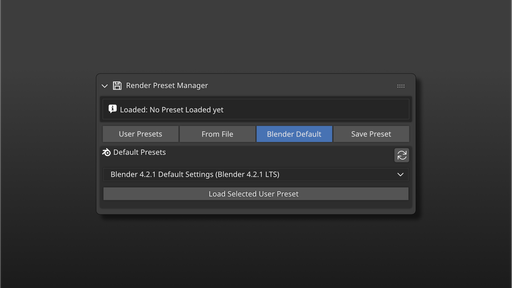
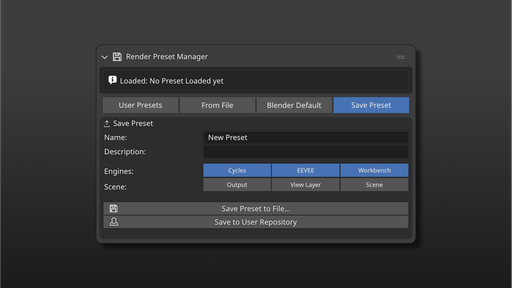
-
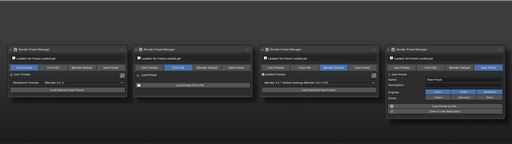
Save & Load Profiles: Save all important render settings for Cycles, Eevee, and Workbench into a single .json file.
-
Detailed Preview on Load: Before applying a preset, a detailed, collapsible preview window shows exactly which settings will change and their new values.
-
One-Click Undo: After loading a preset, an Undo button appears in the panel, allowing you to instantly revert all settings to their previous state.
-
Built-in Default Presets: Ships with a library of default presets (e.g., for different Blender versions or quality levels), dynamically loaded from a presets folder within the addon.
-
Custom User Preset Library: Set your own custom folder in the Addon Preferences to create a personal, organized library of presets, listed directly in the UI for quick access.
-
Quick Save to Library: Save your current setup directly to your custom user library with a single click, no file browser needed.
-
Robust Data Support: Correctly saves and loads complex data types, including Colors, Vectors, and custom Curves (CurveMapping objects, e.g. Motion Blur).
-
Automation Ready: Includes silent operators (render_preset.load_from_path, render_preset.undo_direct) that can be called from scripts or other addons for automated workflows (e.g., apply preset → render → revert).
- Download the latest version as a .zip file.
- In Blender, go to Edit > Preferences > Add-ons.
- Click the Install from disc... button and select the downloaded .zip file.
- Enable the addon by checking the box next to its name: "Render Preset Manager".
Or simply, DRAG AND DROP TO BLENDER!!
The main panel is located in the Properties Editor, under the Render Properties tab.
1. Setting Up (Recommended First Step)
For the best experience, set up your personal presets folder:
- Go to Edit > Preferences > Add-ons.
- Find "Render Preset Manager" in the list and expand its options by clicking the arrow.
- In the User Presets Directory field, select the folder on your computer where you want to store your personal presets.
2. Saving a Preset
- Configure your render and output settings as desired.
- Go to the Render Preset Manager panel in the Render Properties tab.
- Under the Save Preset section, give your preset a Name and an optional Description.
- Use the toggles to select which categories of settings you want to include.
-
Choose one of the two save methods:
-
Save to User Repository (Recommended):
- **Save Preset to File...**: Opens a file browser, allowing you to save the preset anywhere on your computer.
- Saves the preset directly into the folder you defined in the preferences. The filename will be automatically generated from the preset name.
3. Loading a Preset
You have three ways to load a preset:
- Default Presets: Select a built-in preset from the first dropdown list and click "Load Selected Default".
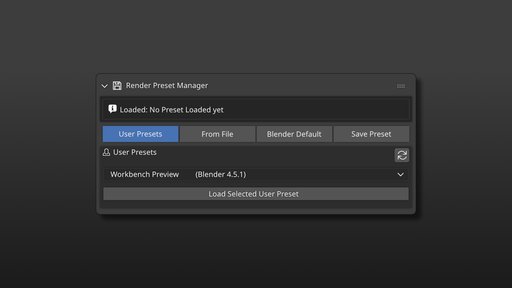
- User Presets: Select one of your personal presets from the User Presets dropdown and click "Load Selected User Preset".
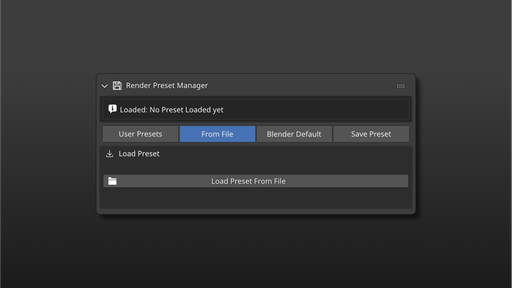
- Load from File: Click the "Load Preset from File" button to open a file browser and select any .json preset.
After selecting a preset, the Load Render Preset preview window will appear, showing all the changes that will be made.
Click OK to apply them.
After applying, an Undo button will appear in the panel, allowing you to revert the changes if needed.