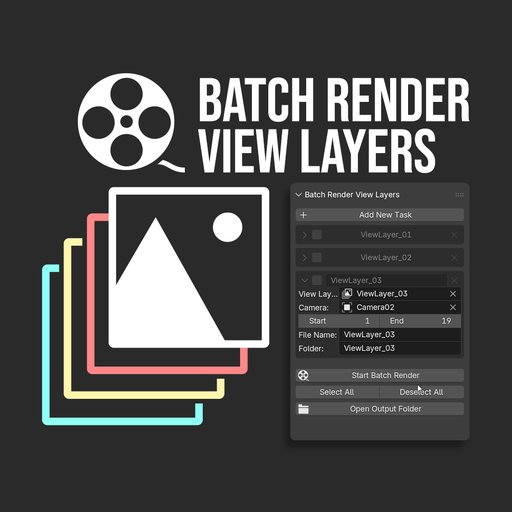
Batch Render View Layers
Create multiple render jobs, each with its own specific View Layer, Camera, and Frame Range.
v1.2.3 key updates:
-
Task Selection and Workflow Automation
-
From "Mark Completed" to "Toggle Enable": The new version replaces the simple completion icon with a functional checkbox; only checked tasks will be included in the batch.
-
Auto-Deselect upon Completion: Once a task finishes rendering, the system automatically unchecks it to prevent redundant rendering in the next session.
-
Bulk Toggle Buttons: New "Select All" and "Deselect All" buttons have been added to the bottom for easier management of large task lists.
2. Real-time Preview and Switching
-
Click Name to Preview: When a task is collapsed, clicking its name automatically switches the 3D viewport to that specific View Layer and Camera.
-
Instant Property Sync: Modifying the View Layer or Camera directly within the panel now triggers an immediate update in the active scene, providing a "what you see is what you get" experience.
3. UI and Visual Enhancements
-
Visual Status Distinction: Tasks that are unchecked (disabled) now appear greyed out in the interface, making it easy to distinguish which tasks will be skipped.
-
Clean Layout: The interface has been streamlined by removing redundant icons and organizing input fields more tidily when a task is expanded.
4. System Stability and Logic
- Smarter Defaults: New tasks now automatically detect and fill in the scene's existing View Layers and Cameras, reducing the need for manual setup.
Task Scheduling: Create multiple render jobs, each with its own specific View Layer, Camera, and Frame Range.
Automatic Setting Swaps: During rendering, the engine automatically switches to the designated camera and view layer for each task, eliminating the need for manual setup changes.
Custom Output Paths: Each job can have a unique subfolder and file name, preventing your renders from overwriting each other.
Completion Tracking: Once a task finishes, it is automatically marked with a "Completed" flag.
Auto-Skip: If you stop and restart a batch, the system automatically skips tasks already marked as done.
Task Reordering: Includes "Move Up" and "Move Down" buttons so you can easily adjust the priority of your render queue.
Reset Function: You can clear all completion flags with one click to re-run the entire batch.
Progress Tracking: Displays a progress percentage and shows exactly which task is currently being processed.
Quick Access: Includes a dedicated button to open the render output folder directly from the panel.
How to Use
Locate the VLRender tab in the Sidebar (N-Panel) of the 3D Viewport.
Click "Add New Task" to create a job.
Assign the desired View Layer, Camera, and Frame Range for that job.
Ensure an output path is set in the standard Blender Render Properties, then click "Start Batch Render".